
JJsplit-vs-HJsplit-comparison: If you’ve landed on this page, you’re probably staring at a file that’s too big to email, upload, or copy onto a USB drive — and you’ve narrowed your options down to two names that keep showing up: JJSplit and HJSplit.
Both are free. Both do the same basic job — break a large file into smaller pieces and put it back together later. But the similarities end pretty quickly once you actually sit down and use them. Here’s an honest, practical breakdown of how they stack up, based on how each one actually works.
jjsplit-vs-hjsplit-comparison Quick Verdict:
| JJSplit | HJSplit | |
|---|---|---|
| Requires Java (JRE) | Yes | No |
| File size | No fixed limit | Up to 100 GB per file |
| Built-in checksum/verify | No | Yes |
| Installation | Portable, no install | Portable, no install |
| Interface | Simple, split/join tabs | Simple but dated |
| Platform support | Windows, Linux, Mac | Primarily Windows |
| Best for | Users who already have Java installed | Users who want a zero-dependency tool |
What Is JJSplit?
JJSplit is a lightweight, open-source utility built in Java that splits files into numbered parts (.v1, .v2, and so on, or the more common .001, .002 format) and joins them back together with a couple of clicks. It’s portable, meaning you can run it straight off a USB stick without installing anything — with one catch, covered below.

Standout features:
- Portable — no installation required
- Supports multi-threaded splitting, which can speed things up on larger files
- Double-click join option, so you don’t have to manually select every part
- Runs on Windows, Linux, and Mac since it’s Java-based
The catch: JJSplit needs the Java Runtime Environment (JRE) installed on your machine. If Java isn’t already there, the app simply won’t launch — and installing a full JRE just to split one file is overkill for a lot of casual users.
What Is HJSplit?
HJSplit, developed by FreeByte, is one of the oldest names in this category and has stuck around for a reason: it’s a single, tiny executable — around 300 KB — with zero dependencies. Double-click it and it opens, no installer, no runtime, no waiting.
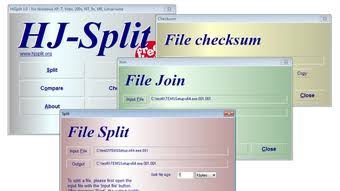
Standout features:
- No Java or any other runtime needed — it just runs
- Handles files up to 100 GB per split
- Includes a built-in Compare and Checksum function, so you can verify that a rejoined file matches the original byte-for-byte
- Extremely small footprint, ideal for USB drives or write-protected media
The catch: the interface hasn’t changed much in years. It’s functional, but it looks like software from a different decade — form clearly took a back seat to function here.
Head-to-Head Comparison
1. Installation & Requirements
This is the biggest practical difference. HJSplit is a standalone .exe — you run it and you’re done. JJSplit requires Java to already be installed, or you’ll need to download and install the JRE separately before it will even open. For anyone who just wants to split one file and move on with their day, that extra step matters.
Winner: HJSplit
2. Splitting & Joining
Both tools let you split a file by defining a chunk size, and both rejoin parts automatically once you point them at the first piece. JJSplit adds a “double-click to join” shortcut that’s genuinely convenient if you split and join files often. HJSplit keeps things a little more manual but no less reliable.
Winner: Tie
3. File Verification
This is where HJSplit pulls ahead. Its built-in Checksum and Compare functions let you confirm a rejoined file is identical to the original — useful if you’re sending something important and want to rule out corruption during transfer. JJSplit doesn’t offer an equivalent built-in verification step.
Winner: HJSplit
4. Speed on Large Files
JJSplit’s support for multi-threaded operations can give it an edge when splitting very large files on a multi-core machine, since it can process chunks in parallel rather than strictly one after another. HJSplit is single-threaded but still handles files up to 100 GB without issue — it just takes it one piece at a time.
Winner: JJSplit (marginally, on larger files)
5. Cross-Platform Use
Because JJSplit runs on Java, it works the same way on Windows, Linux, and Mac. HJSplit is built primarily for Windows, though some legacy builds exist for other systems. If you’re switching between operating systems regularly, JJSplit is the more consistent choice.
Winner: JJSplit
6. Interface & Ease of Use
Neither tool is going to win a design award. JJSplit’s layout is a bit more modern with clear split/join tabs. HJSplit’s interface is more dated but still gets out of your way — six buttons, no learning curve.
Winner: JJSplit (slightly)
Pros and Cons
JJSplit
- ✅ Cross-platform (Windows, Linux, Mac)
- ✅ Multi-threaded splitting
- ✅ Convenient double-click join
- ❌ Requires Java Runtime Environment to run
- ❌ No built-in checksum verification
HJSplit
- ✅ Zero dependencies — runs instantly
- ✅ Built-in checksum/compare for verification
- ✅ Handles files up to 100 GB
- ❌ Windows-focused
- ❌ Outdated interface
Which One Should You Use?
- Pick HJSplit if: you want something that opens immediately with no setup, you’re working on Windows, or you need to verify that a rejoined file wasn’t corrupted during transfer.
- Pick JJSplit if: you already have Java installed, you need the same tool to work across Windows, Linux, and Mac, or you’re regularly splitting very large files and want the speed benefit of multi-threading.
Honestly, keeping both in your toolkit isn’t a bad idea — they’re both free, both portable, and both under a few hundred KB. Try HJSplit first since it requires no setup, and fall back to JJSplit if you need cross-platform support or extra speed on big files.
jjsplit-vs-hjsplit-comparison Frequently Asked Questions
Is JJSplit safe to use?
Yes — JJSplit is open-source and free. As with any download, get it from the official source rather than a third-party site bundled with extra installers.
Do I need Java for HJSplit?
No. That’s one of HJSplit’s main advantages — it runs as a standalone executable with no runtime dependencies.
Can I split a file with one tool and join it with the other?
Both use similar numbered-part conventions, but compatibility isn’t guaranteed across tools. For best results, split and join using the same program.
Which tool is faster for very large files?
JJSplit’s multi-threading can give it a slight edge on large, multi-gigabyte files on modern multi-core machines. For most everyday file sizes, the difference is negligible.
Is there a file size limit?
HJSplit officially supports files up to 100 GB. JJSplit doesn’t publish a hard limit, though performance will depend on your system’s resources.
Have you used both tools? Let us know which one you’d recommend in the comments below.